Your Smart TV is already one of the most powerful streaming devices in your home — you just might not know it yet. Sitting in living rooms across Ireland are Samsung, LG, Sony, and Android televisions perfectly capable of streaming thousands of live channels in 4K, without needing a single extra device, a satellite dish, or a cable box. All they need is the right app and the right credentials.
That is where IPTV Smart TV setups come in. Whether you are using the enormously popular IPTV Smarters Pro app, the Smart IPTV app, or one of the other players available on modern televisions, getting IPTV running directly on your Smart TV is one of the cleanest, simplest setups available — no dongles, no extra remotes, no cables trailing behind the telly.
This guide covers everything about IPTV Smart TV setups in 2026: which apps work on which television brands, how to install and configure them step by step, how IPTV Smarters compares to the alternatives, and how to troubleshoot the issues that most commonly trip people up. Whether you own a Samsung, LG, Sony, Hisense, TCL, or any other Smart TV, you will find your setup covered here.
What Is IPTV Smarters and Why Is It So Popular?
If you have researched IPTV at all, you have encountered the name IPTV Smarters — usually as IPTV Smarters Pro. It is by some distance the most widely used IPTV player in the world, and for good reason.
IPTV Smarters is a free player application that turns your Smart TV, phone, tablet, Fire Stick, or computer into a fully functional IPTV receiver. It does not provide any content itself — it is simply the app that displays the channels your provider gives you access to. Think of it as the equivalent of a Sky box, except it is a piece of free software rather than a €200 piece of hardware.
The reason IPTV Smart setups so often involve IPTV Smarters comes down to three things. It is genuinely easy to use, with an interface that anyone comfortable with Netflix can navigate. It supports the Xtream Codes login method, which means setting it up requires nothing more than entering a username, password, and server URL. And it is available across virtually every platform — Smart TVs, Fire Stick, Android, iOS, Windows, and Mac — so once you learn it on one device, you know it everywhere.
For most people setting up IPTV on a Smart TV in Ireland, IPTV Smarters Pro is the natural starting point.
IPTV Smart TV Setup: Samsung Televisions
Samsung is the most popular television brand in Irish homes, and Samsung Smart TVs from 2017 onwards run the Tizen operating system — which supports several excellent IPTV apps.
To set up IPTV Smart streaming on a Samsung TV, press the Home button on your remote and navigate to the Samsung Apps store. Search for « IPTV Smarters » or « Smart IPTV » and install whichever is available for your model. Availability varies by TV model and region, so if one is not present, try the other.
If you install IPTV Smarters, open the app and select the Xtream Codes login option. Enter the username, password, and server URL provided by your IPTV provider. Your channel list will load within seconds and you can begin browsing categories — Live TV, Movies, Series — using your Samsung remote.
If you install Smart IPTV instead, the setup works slightly differently. Smart IPTV uses your television’s MAC address, which the app displays on screen when you first open it. You then visit the Smart IPTV website on your phone or computer, enter that MAC address, and upload your M3U playlist URL — which your provider supplies alongside your Xtream Codes credentials. Once uploaded, your channels appear on the TV automatically.
Both methods work well on Samsung. IPTV Smarters is simpler if it is available for your model; Smart IPTV is the reliable fallback if it is not.
IPTV Smart TV Setup: LG Televisions
LG Smart TVs run webOS, and the setup process for an IPTV Smart configuration is very similar to Samsung.
Press the Home button on your LG remote and open the LG Content Store. Search for « IPTV Smarters Pro » or « Smart IPTV » and install whichever is available. If neither appears for your model, « SS IPTV » is an excellent free alternative that works reliably on LG televisions.
With IPTV Smarters on LG, open the app, choose the Xtream Codes login, and enter your username, password, and server URL. Your channels load immediately and you can navigate using LG’s Magic Remote, which makes browsing categories particularly smooth thanks to its point-and-click functionality.
With Smart IPTV or SS IPTV on LG, you may need to activate the app using your TV’s MAC address and upload your M3U playlist through the app’s website — the same process described for Samsung above.
LG’s webOS is generally responsive and handles IPTV streaming well, with fast channel switching and reliable playback on models from the last several years.
IPTV Smart TV Setup: Sony, Hisense, TCL and Android TVs
A large number of Smart TV brands — including Sony, Hisense, TCL, Philips, and Sharp — run Android TV as their operating system. If your television is one of these, you have the easiest IPTV Smart setup of all, because Android TV has full access to the Google Play Store.
Open the Google Play Store on your television. Search for « IPTV Smarters Pro » and install it directly — no sideloading, no MAC addresses, no workarounds. Alternatively, search for « TiviMate, » which is widely regarded as the best IPTV player for Android TV thanks to its polished interface, near-instant channel switching, and excellent electronic programme guide.
Once installed, open the app, select the Xtream Codes login, enter your credentials, and your channel list loads immediately. The whole process takes about three minutes.
Android TV-based Smart TVs generally deliver the best IPTV Smart experience of any television platform, because the Play Store gives you full access to the best apps without any of the workarounds that Samsung and LG sometimes require.
IPTV Smarters vs TiviMate vs Smart IPTV: Which Should You Use?
With several apps available for an IPTV Smart TV setup, which one is actually best? Here is an honest comparison.
IPTV Smarters Pro is the best all-rounder and the right choice for most people. It is free, easy to set up with Xtream Codes, available on nearly every platform, and has a clean interface with a working programme guide. Its only real weakness is that channel switching takes a second or two — barely noticeable for casual viewing, but slightly frustrating if you are flipping between simultaneous football matches.
TiviMate is the premium choice, and the best option if your television runs Android TV. Its interface resembles a polished cable TV guide, channel switching is near-instant, and the premium version — around €5 per year — adds recording, catch-up, and picture-in-picture. For sports fans in particular, TiviMate is worth the small cost. The limitation is that it is only available on Android-based platforms, so Samsung and LG owners cannot use it directly on the TV.
Smart IPTV is the reliable fallback for Samsung and LG televisions where IPTV Smarters is unavailable. It works well and is stable, though the MAC address activation process is slightly more fiddly than a straightforward login, and there is typically a small one-off activation fee paid to the app developer.
Our recommendation for most Irish viewers is straightforward. If you have an Android-based Smart TV, use TiviMate. If you have Samsung or LG and IPTV Smarters is available, use that. If IPTV Smarters is not available on your Samsung or LG, use Smart IPTV.
Troubleshooting Common IPTV Smart TV Problems
Even with a correct IPTV Smart setup, you may occasionally hit an issue. Here are the most common ones and their fixes.
If the app will not install because it is not in your TV’s app store, this is a limitation of Samsung and LG’s curated stores. The fix is to use one of the alternative apps that is available — Smart IPTV or SS IPTV — or to buy an inexpensive Amazon Fire Stick, which sidesteps the problem entirely and gives you access to every IPTV app.
If your credentials are rejected with an authentication error, the cause is almost always a typing mistake. Credentials are case-sensitive, and an extra space before or after the username, password, or server URL will cause a failure. Delete each field entirely and retype it carefully.
If the channels load but buffer constantly, the issue is your network rather than the app. Smart TVs often have weaker Wi-Fi chips than dedicated streaming devices, so if your television is far from the router, the signal may simply be too weak. The fix is to connect your Smart TV to the router with an ethernet cable — most Smart TVs have an ethernet port on the back. This resolves the vast majority of IPTV Smart TV buffering issues.
If the app is sluggish or crashes, clear the app’s cache through your TV’s settings, or uninstall and reinstall the app. Smart TVs have limited memory, so closing other apps before launching your IPTV player also helps.
If the electronic programme guide is empty, give it ten minutes to populate on first load — EPG data can take a while to download. If it remains empty, your provider may need to supply an updated EPG URL.
When to Use a Fire Stick Instead of Your Smart TV
Honest advice: while an IPTV Smart TV setup is clean and convenient, a Smart TV is not always the best device for IPTV.
Smart TVs — particularly Samsung and LG — restrict which apps you can install, which means you may be stuck with a less capable player. Their processors are often slower than a dedicated streaming device, leading to laggy navigation and slower channel switching. Their Wi-Fi chips are frequently weaker, causing buffering that a Fire Stick in the same position would not experience. And Smart TV apps receive updates less frequently than their Fire Stick and Android counterparts.
For under €55, an Amazon Fire Stick 4K plugs into your television’s HDMI port and gives you a faster processor, better Wi-Fi, access to every IPTV app including TiviMate, and more frequent updates. For anyone who watches a lot of live sport — where fast channel switching and rock-solid stability matter most — a Fire Stick genuinely outperforms most built-in Smart TV apps.
That said, if your Smart TV runs Android TV, there is little reason to add a Fire Stick — you already have full app access and good performance. And if you simply want the cleanest possible setup with no extra devices or remotes, an IPTV Smart TV configuration works perfectly well for everyday viewing.
Getting Your IPTV Smart TV Setup Running Today
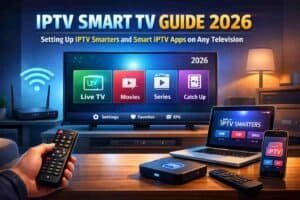
Whichever television you own — Samsung, LG, Sony, Hisense, TCL, or any other brand — you can have IPTV running on it within about ten minutes. All you need is the right app for your platform and a set of credentials from a reliable provider.
With a LeapVillage subscription, you get access to over 25,000 live channels and 150,000 on-demand titles, streaming in Full HD and 4K directly to your Smart TV. Our Irish support team will tell you exactly which app to install for your specific television model and walk you through the entire setup over WhatsApp — including the trickier Samsung and LG activation processes if needed.
Choose your plan on our subscription page, or message us on WhatsApp telling us your TV brand and model, and we will send you the exact setup instructions for your television. Our team is available 24/7.
For more device guides, explore our Fire Stick setup walkthrough, our full device setup guide, and our buffering troubleshooting guide on the LeapVillage blog.
Your Smart TV is already ready. Let us switch it on properly. Welcome to LeapVillage.